
Silk Mobile
Table of Contents (Homepage)
- Overview
- Setting Up
- Getting Started
- How To
- Connecting Devices And Emulators
- Preparing Applications For Testing
- Managing Applications
- Recording Tests
- Working With Test Commands
- Adding Commands To Your Scripts
- Object Commands
- Click
- ClickCoordinate
- ClickIn
- ClickOffset
- Drag
- ElementGetProperty
- ElementGetTableRowsCount
- ElementListPick
- ElementListSelect
- ElementListVisible
- ElementScrollToTableRow
- ElementSendText
- ElementSetProperty
- ElementSwipe
- ElementSwipeWhileNotFound
- GetAllValues
- GetElementCount
- GetElementCountIn
- GetTextIn
- IsElementBlank
- IsElementFound
- IsFoundIn
- LongClick
- RunNativeAPICall
- SendWhileNotFound
- VerifyElementFound
- VerifyElementNotFound
- VerifyIn
- WaitForElement
- WaitForElementToVanish
- GetCoordinateColor
- DragDrop
- Application Commands
- Device Commands
- Web (Hybrid) Specific Commands
- Utilities Commands
- Monitoring Commands
- Configuration Commands
- ExtractLanguageFiles
- SetDefaultClickDownTime
- SetDefaultTimeOut
- SetDefaultWebView
- SetDragStartDelay
- SetInKeyDelay
- SetKeyToKeyDelay
- SetLanguage
- SetLanguagePropertiesFile
- SetShowImageInReport
- SetShowPassImageInReport
- SetShowReport
- SetSpeed
- SetThrowExceptionOnFail
- SetWebAutoScroll
- StartStepsGroup
- StopStepsGroup
- TextFilter
- Miscellaneous Commands
- Controlling Element Identification Rules
- Editing Test Objects
- Executing Test Scripts
- Report Of Executed Test
- Working From Code Environment
- Continuous Integration
- Layout Verification Tests
- Use Device Vitals Monitors
- Troubleshooting
- Terminology
Collect Support Data
Having some issues while working with Silk Mobile? Please let us know about them.
On this page you can find ways to help us get a better understanding of the problem that you are facing.
For this matter we have created the 'Collect Support Data' wizard.
Step 1: Go to Help --> Collect Support Data
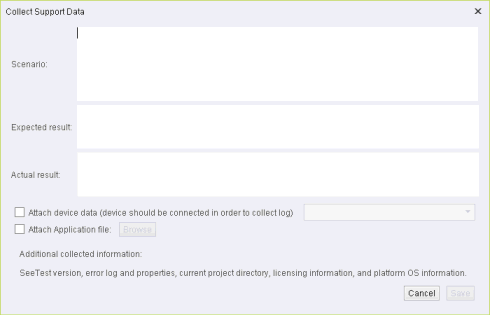
Step 2: Fill in the following form
-
Scenario - what actions were taken? which device/OS/application? any additional information is helpful.
-
Expected result - what were you expecting to happen?
-
Actual result - what did happen that is not right?
-
Attach Application file - Will help our support team to reproduce the issue
-
Attach Device data - attach the device log. Note that the device must be connected in order to attach its log.
If the device is an iOS device checking this option will add an application crash log files.
All these should help our experts have a full understanding of what happened on your machine, and fix this issue for you.
How to get 'Error Log'
Can be found under the %AppData%
\
Silk Mobile Folder as "Error.log".
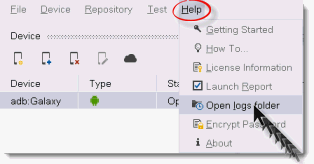
You can open the folder by clicking on Help --> Open logs folder
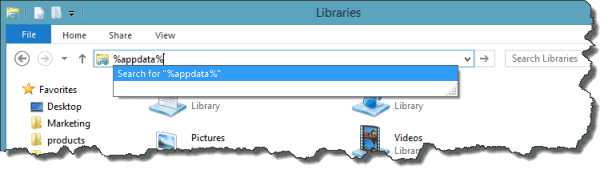
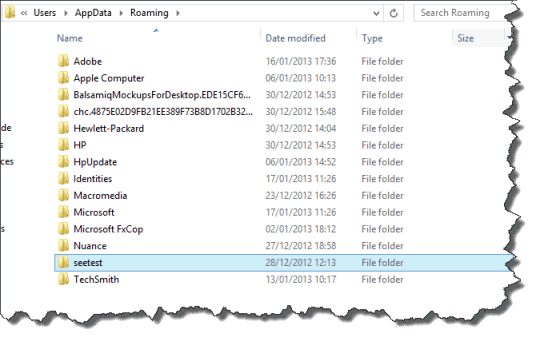
On Windows Machine searching for %appdata% and go to Roaming -> Silk Mobile.
On a Mac machine you can navigate to "~/Silk Mobile" to find error.log file.